8 Collaborative Whiteboard Activities for Any Class
A shared whiteboard everyone can draw on at once is one of the most flexible tools in a classroom — and one of the easiest to underuse. Here are eight concrete activities that turn a blank canvas into real learning, whether you’re in the room, remote, or a mix of both.
Start from a template, not an empty canvas
A completely blank board is the single biggest reason these activities stall. Learners open it, see nothing, and wait for someone else to go first. Give them a structure to fill in and the same group starts contributing within seconds.
When you create a GreenBoard you can now pick a starting layout instead of a blank board. The library covers most of what follows:
- Thinking and relationships — concept map, mind map, Venn diagram
- Analysis — SWOT, fishbone (cause & effect), impact/effort matrix, pros & cons
- Divergent and sorting — brainstorm grid, affinity clusters, empathy map
- Session structure — K-W-L, start/stop/continue, 3-2-1 exit ticket, process timeline, storyboard
- Software and systems — UML class, sequence, use case and activity diagrams
Every template is a normal board once it’s created: move things, retitle the zones, delete what you don’t need, add your own diagram, then activate it for learners. Nothing is locked. When a layout runs out of room, select a box, step or branch and press one of the + buttons on its sides. A matching one is added in that direction, already numbered and wired to its neighbours.
Or describe the board and let AI lay it out
If none of the layouts quite fits, pick ✨ AI-assisted at the top of the list and describe the lesson instead: “Year 10 history, causes of the First World War — learners sort evidence into the main causes and say how important each was.” The AI chooses a shape for the activity (columns, a grid of zones, a step-by-step process, a mind map or a concept map with labelled arrows), names each zone and writes a short prompt inside it. Creating the board costs 5 AI credits, and nothing is charged if it fails.
The board keeps its assistant. Open ✨ AI on the toolbar and ask for a change in plain words: “add a column for risks”, “turn it into a mind map”, “make the prompts suit Year 7”. Only the AI-drawn layout is redrawn. Learners’ notes and drawings stay where they are, and any label you retyped by hand is kept. Each change works out at a quarter of a credit (one credit covers four), and ↺ Redraw layout puts the layout back for free if it gets dragged apart. Your prompts stay with you: learners never see them.
1. Live mind map
Put a topic in the centre and let the whole class branch out from it simultaneously. In two minutes you’ll have a richer map than any one person could build — and a snapshot of what the group already knows. Start from the mind map template, rename the centre bubble, and let them grow the branches.
2. Concept mapping
A concept map looks like a mind map but does harder work. Every arrow carries a linking phrase — “causes”, “is an example of”, “depends on” — so learners can’t just list related words; they have to state how two ideas connect. That constraint is where the thinking happens, and it exposes misconceptions a word cloud would hide.
Push for cross-links: arrows between different branches. Anyone can produce a neat hierarchy, but noticing that something in branch three explains something in branch one is the sign a learner has genuinely integrated the material. The concept map template starts you with a small labelled hierarchy, one example cross-link, and spare nodes to drag out and wire up.
Two ways to run it: build one map as a whole class to open a topic, or give each group the same map at the end of a unit and compare them side by side. The differences between groups are the most useful discussion you’ll have all session.
3. Process mapping
Ask groups to lay out the steps of a process as a flowchart. Gaps and wrong orderings become visible instantly, giving you an obvious place to teach into. The process timeline template gives you five linked steps with room for notes under each; the storyboard template does the same job when the sequence is a scenario rather than a procedure.
For anything with branches and decisions, use the 📐 Diagram button. Paste or type Mermaid code and it becomes real shapes on the board: flowcharts, sequence diagrams, class diagrams, state diagrams and entity-relationship diagrams. Every box and arrow can then be moved, recoloured and annotated like anything else the class has drawn. Trainers who would rather not write the code can describe the diagram (“a login flow with a locked-account branch”) and let AI draft it. That costs 5 credits, and you see the result before it goes on the board. It makes a good computing or business lesson: give groups the diagram with one step deliberately wrong and ask them to find it and fix it.
4. Sorting wall
Draw two or three columns and have learners drag ideas into the right one. Great for pros/cons, do/don’t, or fact/opinion — and the border cases spark debate. Use the pros & cons template for two columns, or affinity clusters when learners post ideas first and only then agree on what the categories should be.
5. Silent brainstorm
Everyone adds ideas at once, in silence, for ninety seconds. Removing the talking removes the loudest-voice problem and gets far more ideas onto the board. The brainstorm grid template splits the canvas into ideas, questions, risks and next steps, so the pile is already half-sorted when the timer stops.
6. Annotate an image
Drop in a diagram, map, or screenshot and have learners label or mark it up together. Ideal for anatomy, geography, code review, or spotting errors.
7. Live vote with dots
List options and let each learner spend a few dots on their favourites. Instant, visual, and a natural springboard into “why did you vote that way?” GreenBoard has dot voting built in: open the vote, choose how many dots each person gets (three is a good default), and learners tap the items they back. Running totals show on each item and stay there after you close the vote. A refresh doesn’t hand anyone a fresh set of dots. Lay the options out on the impact/effort matrix template when you want the vote to weigh two dimensions at once rather than pick a single favourite.
8. Build-one-thing-together
Give the whole class a single construction task — one flowchart, one timeline, one diagram — that only works if they coordinate. The negotiation is the lesson. Turn on shared editing for this one. Normally each learner can only move what they made; with it on, anyone can move, tidy or rework anyone’s item, which is what building one thing together actually needs. The contribution tally still credits whoever made each item, so dragging a classmate’s note doesn’t count as your work.
Keep it focused
The one risk of a shared canvas is chaos. Lock the board when you need attention, clear it between activities, and give every task a tight time limit. Starting from a template helps here too: when the board already says where things go, there’s less room for it to drift.
When you’re talking the class through the board, switch on 👣 Follow me. Every learner’s screen moves to whatever part of the board you’re looking at, and it is sized to fit their own screen, so a phone sees the same region as a laptop rather than a corner of it. Anyone who scrolls off to look at something else is left alone until you move again, with a button to jump back.
Close the session with the 3-2-1 exit ticket template — three things I learned, two questions I still have, one thing I’ll do differently. It takes ninety seconds and tells you exactly what to open with next time.
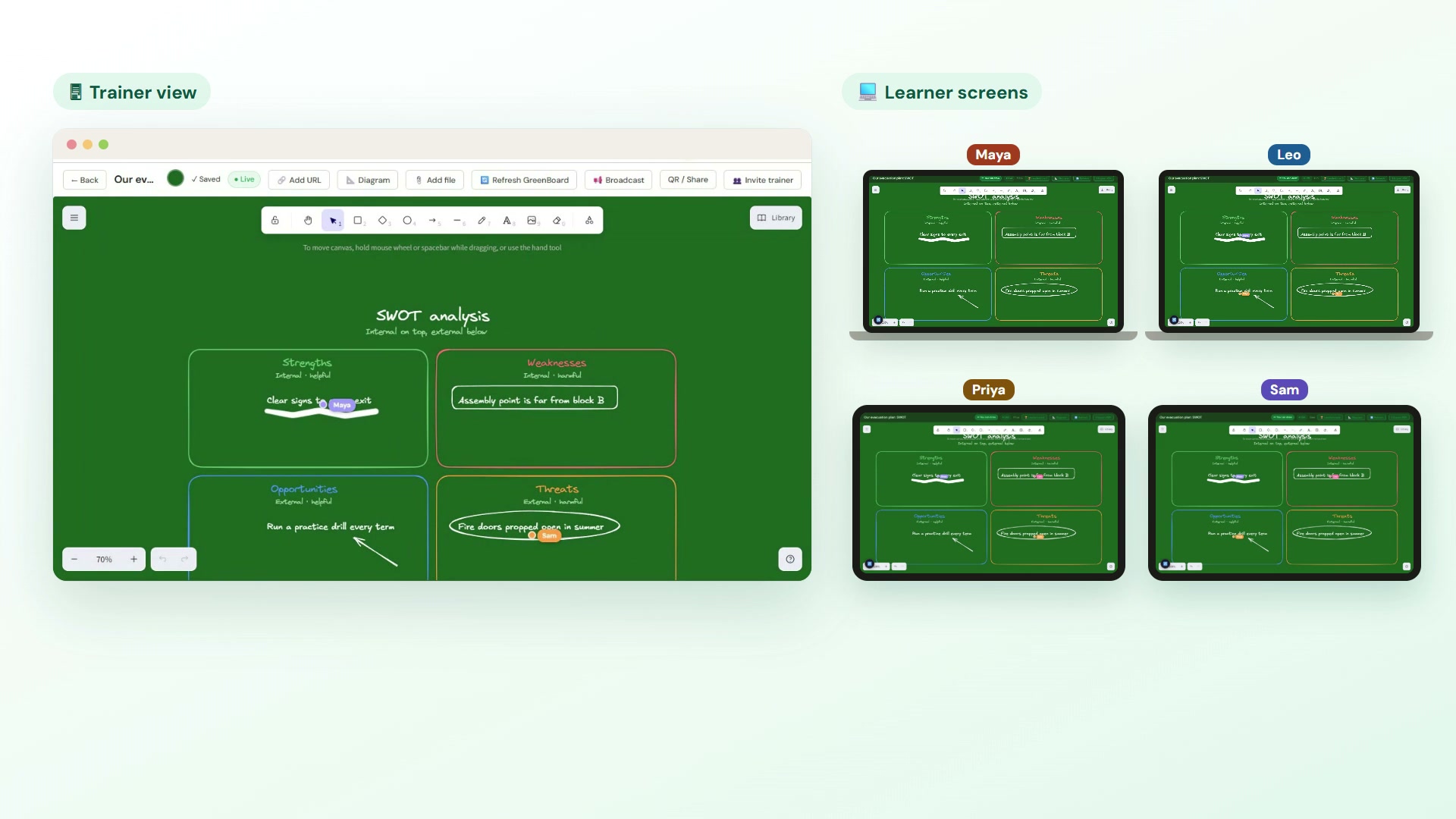
ColabYard’s collaborative whiteboard (GreenBoard) lets a whole class draw together live — students join by QR code with no account, and you control drawing permissions and moderation throughout. Pick a template or describe the board to the AI when you create it, edit it to suit your topic, and activate it when you’re ready. Try it inside an interactive lecture for a quick change of pace.
Frequently asked questions
What can you do with a collaborative whiteboard in class?
Mind maps, concept maps, process maps, sorting walls, silent brainstorms, annotating an image, dot voting and building one diagram together as a class. Each gets every learner contributing at once instead of one person at the board.
What is the difference between a concept map and a mind map?
A mind map radiates from one central idea in branches. A concept map links many ideas to each other and labels each link to say how the two are related, so it shows relationships a mind map leaves out.
How do I stop a shared whiteboard descending into chaos?
Start from a template so the board already shows where things go, give every task a tight time limit, pause drawing when you need attention, and clear the board between activities.
Do students need accounts to use an online whiteboard?
Not with GreenBoard. Learners join by scanning a QR code or opening a link, and can contribute by name or anonymously.
Can AI set up a whiteboard for me?
Yes. Choose AI-assisted when you create a GreenBoard and describe the lesson in a sentence or two. The AI lays out a board of columns, a grid, a process, a mind map or a concept map with prompts in each zone. It costs 5 AI credits, and you can then ask it for changes from the board itself.
Can I draw UML diagrams on a collaborative whiteboard?
Yes. GreenBoard has templates for UML class, sequence, use case and activity diagrams, and a Diagram button that turns Mermaid code into editable shapes: flowcharts, sequence, class, state and entity-relationship diagrams. Trainers can also describe a diagram and have AI write the code.
Watch it in action
Try it with your own learners
ColabYard is free for trainers. No student accounts needed — just a QR code.
Get started free →